Supply allocation templates allow you to save your preferred supply settings—including supplier groups, distribution, and minimum/maximum values—so you can easily reuse them across future target groups.
Utilizing templates reduces manual setup time and ensures accurate, consistent allocations for your projects.
Supply allocation templates allow you to save your preferred supply settings—including supplier groups, distribution, and minimum/maximum values—so you can easily reuse them across future target groups.
Utilizing templates reduces manual setup time and ensures accurate, consistent allocations for your projects.
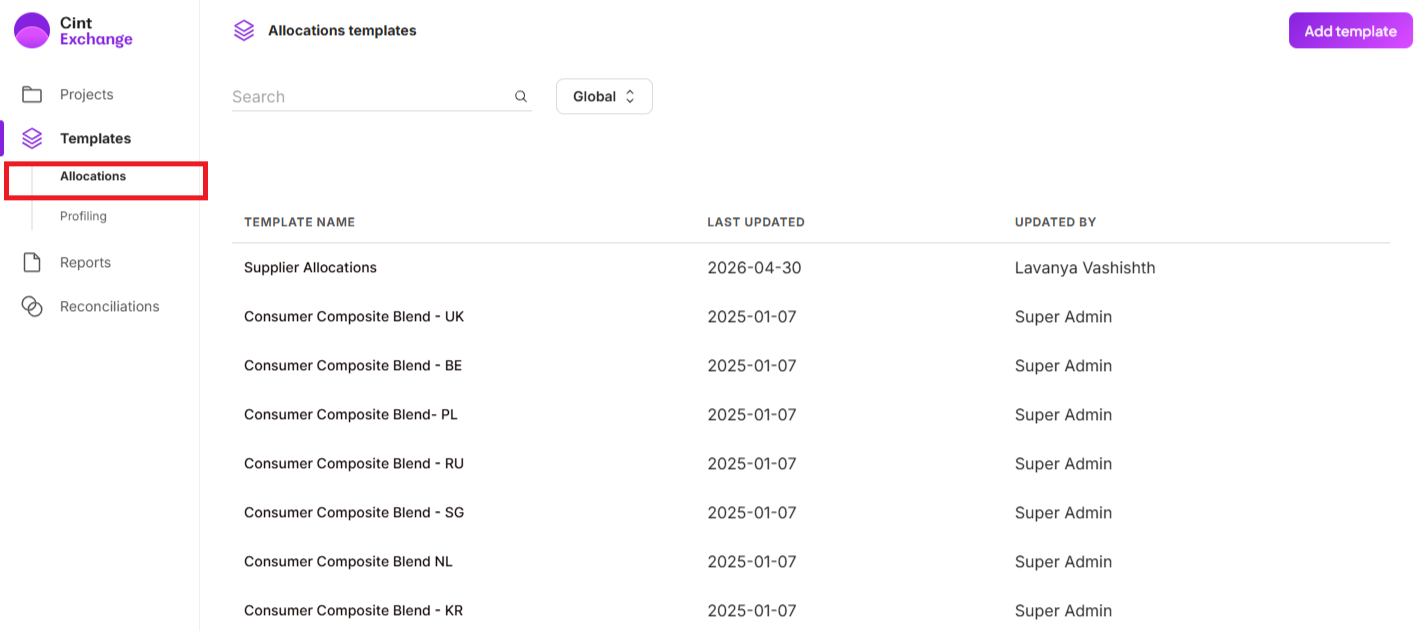
Navigate to Templates > Allocations in the left-hand navigation bar
Click the Add template button.
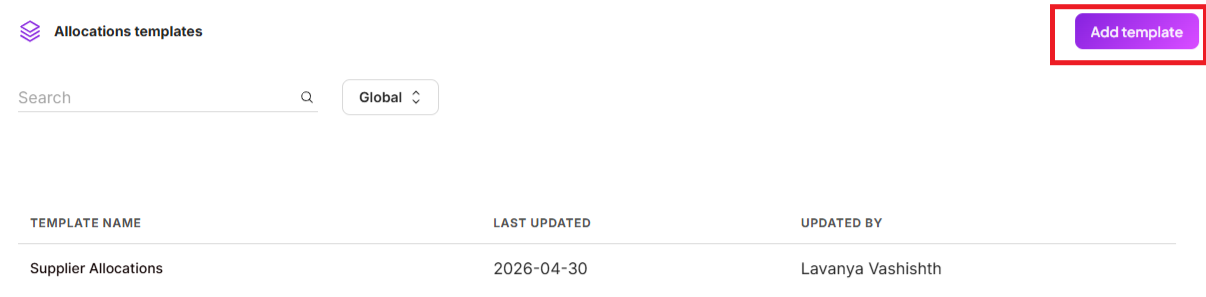
The Allocations templates page displays.

Enter the template name.
Choose one of the following template types: Country, Account or Global
If you select Country, choose the applicable business unit and country.

Any available Private Exchange suppliers for that selection will load automatically.
Apply the same template across multiple countries, select all applicable countries. Countries can only be combined in a single template if they share the exact same private suppliers; selecting multiple countries filters the available suppliers to those common across all selected locations.
Enable the Default toggle to load this template automatically whenever a target group is created in the UI for that business unit and country combination.
Configure supplier groups and percentages.
Click Save.
Recommendation: If you intend to use only Private Suppliers in a Country Template, it is recommended that you keep Open Exchange suppliers in the Default Group and set its maximum value to 0%, rather than blocking them outright. New suppliers added to the platform are placed into this group by default; if the group's maximum is not set to 0%, newly added suppliers could still gain access to your survey. Setting the maximum to 0% ensures your surveys remain accessible only to your intended Private Suppliers, including any suppliers added to the platform in the future.
Applying and saving templates in a target group
You can quickly apply existing templates or save new ones directly during the target group creation process.
To apply a template:
Navigate to the Advanced Setup section of the target group creation page.
Click the Templates button to open the template selection pop-up.

Select one of the following:
Global Templates
My Templates
Country
Search for and click on the desired template to apply its allocation settings to your target group.
See Target group advanced settings configuration for more information on setting up allocations.
To save a new template from a target group:
Apply a template and make any necessary adjustments to the allocations, or build your allocations from scratch.
Click the three-dot menu icon on the allocations panel.
Select the option to save your current settings as a new template. This template will now be available for all future target groups on your account.
Depending on the setup, this template will be saved as either an Account Template, available for all future target groups on your account, or a Country Template, available for that specific business unit and country combination.